The Nintendo Switch 2 gives a capture card two quite different jobs. One is to send the picture you want to play on to your TV or monitor. The other is to send a recording feed to your computer. Those pictures do not have to be the same resolution or frame rate. A card that passes 4K60 to the TV may record only 1080p60; another can preserve a 120Hz monitor signal while still producing a 60fps stream.
Nintendo’s TV-mode specification lists up to 4K at 60fps, or up to 120fps at 1080p and 1440p. HDR10 is supported, with the available modes depending on the game and display. Nintendo also added TV-mode VRR in a September 2026 system update. Choose the card for the output mode you use, not simply because its box says “4K”.
| Your Switch 2 setup | What the card must pass to the display | Sensible recording target |
|---|---|---|
| 4K television, Full HD stream | 4K60, with HDR if used | 1080p60 |
| 1440p gaming monitor at 120Hz | 1440p120 | 1080p60 or 1440p60 |
| 4K gameplay archive | 4K60 | 4K60 capture |
For a 4K TV and a 1080p stream: Game Capture Neo
The Elgato Game Capture Neo passes a 4K60 HDR signal to a television and delivers up to 1080p60 to recording software. That is enough if the finished video is Full HD. Its supported-mode table also lists 1080p120 passthrough, but not 1440p120. A 120Hz 1440p monitor therefore calls for a different card if keeping that mode matters.
Neo connects to a 5Gbps USB 3.0 port. Its box includes a USB-C-to-A cable and no HDMI cable, so check the two HDMI links needed to run dock → capture card → TV. The card’s 1080p60 capture ceiling does not change when the Switch 2 is set to 4K. Elgato’s Switch 2 comparison specifically describes this 4K60 passthrough and 1080p60 recording arrangement.
Elgato Game Capture Neo
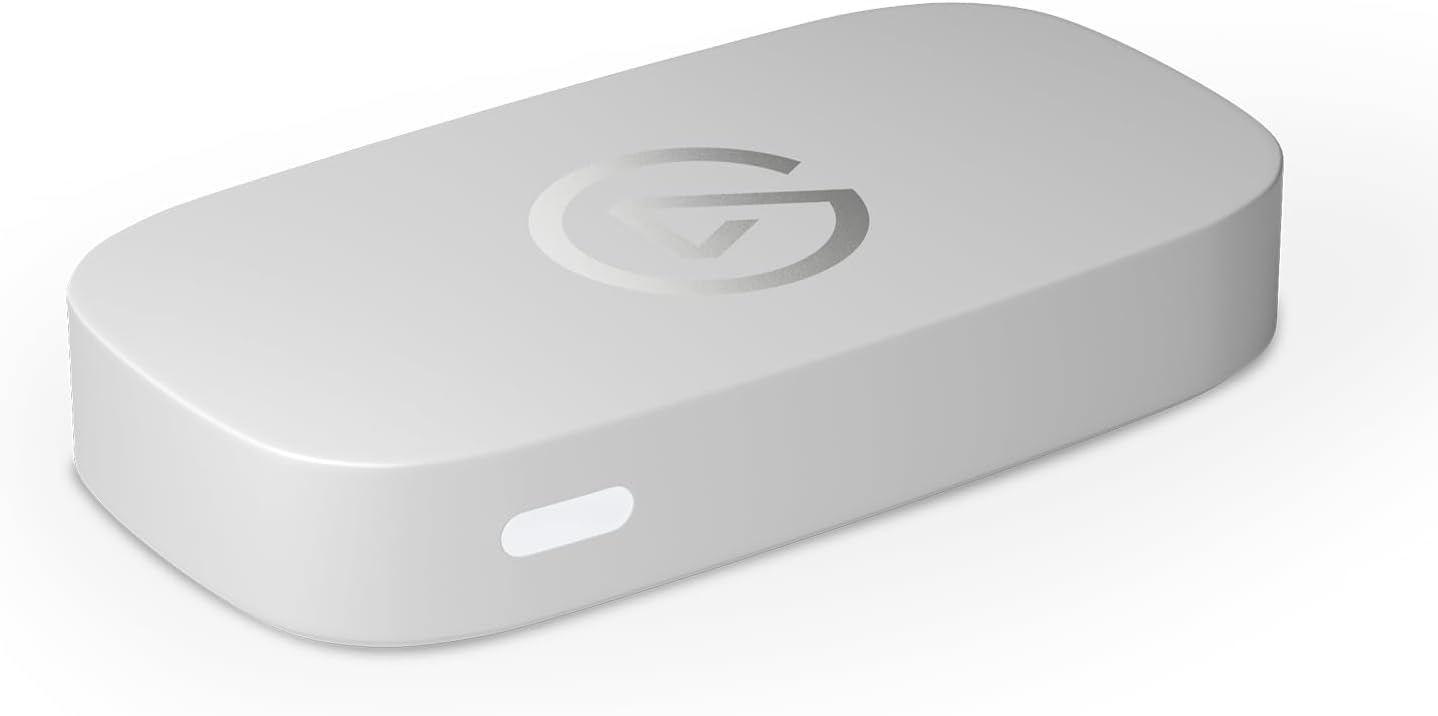
Capture: Up to 1080p60
Passthrough: Up to 4K60 HDR
Connection: USB 3.0 (5Gbps)
For a 1440p120 monitor: HD60 X
The HD60 X specification lists 1440p120 passthrough, as well as 4K60 and 1080p240. It can capture up to 1440p60, 4K30 or 1080p60 HDR on Windows. In a 1440p120 Switch 2 setup, the display keeps its high-refresh signal while the recording runs at a lower frame rate. HD60 X also offers VRR passthrough and a stereo line-in port.
The difference between 4K30 capture and 4K60 capture matters here. HD60 X can pass a 4K60 game to a TV, but it cannot save a 4K60 file. If your finished video must be 4K60, move to a card with that explicit recording mode. HD60 X still uses a 5Gbps USB connection and includes one HDMI cable; the other HDMI lead usually comes from the console or your own cable supply.
Elgato HD60 X
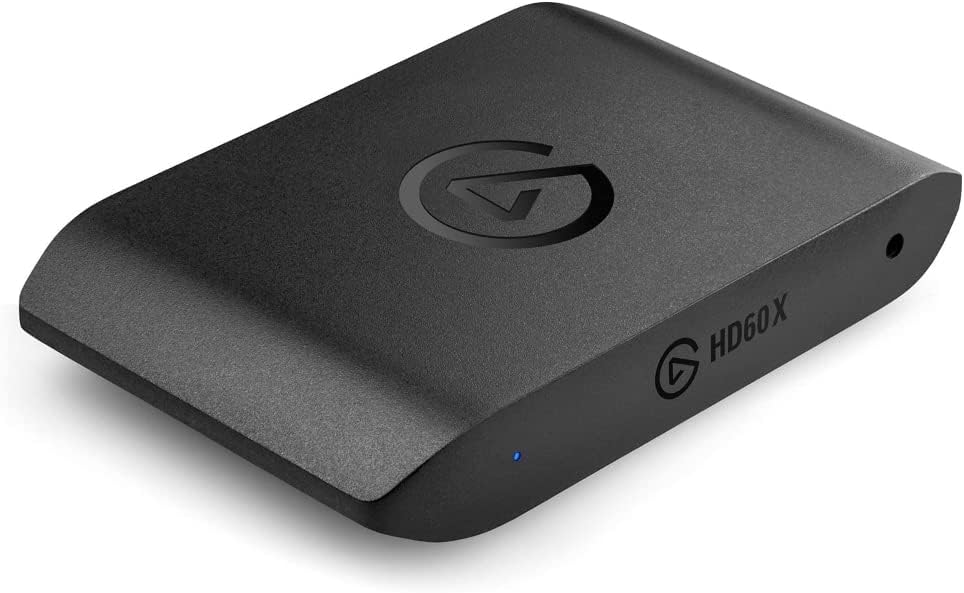
Capture: Up to 4K30 or 1080p60 HDR
Passthrough: 4K60, 1440p120 or 1080p240
Connection: USB 3.0 (5Gbps)
For 4K60 files: 4K X or GC553G2
The Elgato 4K X and AVerMedia Live Gamer ULTRA 2.1 GC553G2 both offer 4K60 capture and HDMI 2.1 passthrough. Their highest passthrough modes exceed what Switch 2 currently outputs. That extra headroom is mainly useful if the same card will later handle a 4K120 console or a high-refresh PC. For full capture performance, both use a 10Gbps USB connection; confirm the computer port’s data speed rather than relying on its USB-C shape.
The 4K X has an input and capture matrix that separates SDR from HDR recording limits. Its headline 4K144 mode is SDR, while HDR capture has a lower ceiling. The GC553G2 supports 4K60 recording under its standard specifications, with additional high-frame-rate modes depending on firmware and software. Neither card is necessary for a 1080p60 stream merely because the Switch 2 can output 4K.
Elgato 4K X
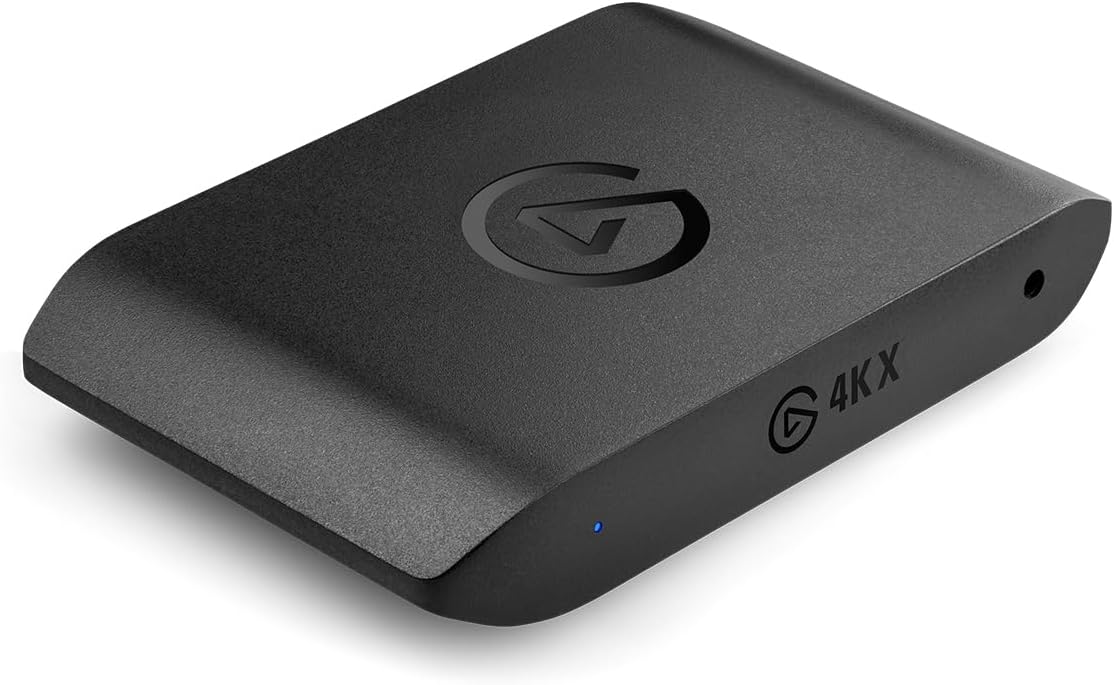
Capture: Up to 4K144 SDR; 4K30 HDR
Passthrough: Up to 4K144 with VRR
Connection: USB 3.2 Gen 2 (10Gbps)
AVerMedia Live Gamer ULTRA 2.1 (GC553G2)
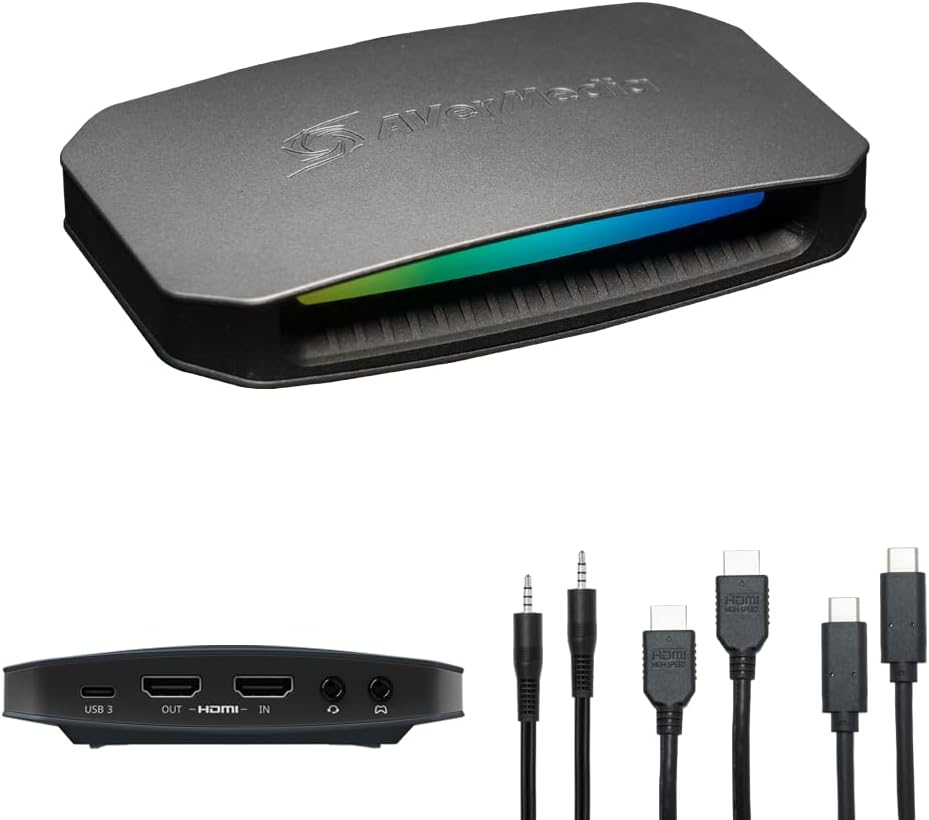
Capture: Up to 4K144 with supported Windows software; 4K60 standard mode
Passthrough: Up to 4K144 HDR/VRR
Connection: USB 3.2 Gen 2 (10Gbps)
Make the connection match the intended mode
The dock’s HDMI output goes to the capture card’s HDMI input; the card’s HDMI output goes to the TV or monitor. USB runs from the card to the recording computer. Elgato’s setup guide notes that Switch 2 does not need a PS5-style HDCP setting for normal gameplay capture. In OBS, add the capture card as a video capture source and inspect the incoming resolution and frame rate before recording a long session.
If the TV drops from 120Hz to 60Hz after connecting a card, compare the game’s output with the card’s passthrough modes first. If the TV looks right but the recording is limited, check the card’s capture modes and the USB port speed. Those are separate limits, and buying for the wrong one is the easiest way to end up with a card that technically works but does not preserve the way you play.